



Published on
April 17, 2024
In the vast world of web server administration, security stands as a paramount concern. As data transmission between clients and servers becomes increasingly vital, ensuring its protection becomes non-negotiable. In this landscape, setting up a web server on a Linux distribution entails a fundamental task: ensuring the security of transmitted data. At the vanguard of this attempt, it is located the implementation of Transport Layer Security (TLS) encryption. For anyone involved in web development or hosting, mastering TLS encryption is not just a best practice but a foundational skill in safeguarding sensitive information exchanged over the web.
In this first article of our sequence: Installing web servers on different Linux distributions we dig into the process of installing and configuring one of the most popular web servers for Linux “Apache Httpd“ to enable TLS encryption on popular operating systems such as Red Hat Enterprise Linux (RHEL), Debian, and OpenSUSE. This detailed guide provides clear and practical steps for implementing an additional layer of security on your Apache Htttpd web servers, consequently ensuring the confidentiality and integrity of communication.
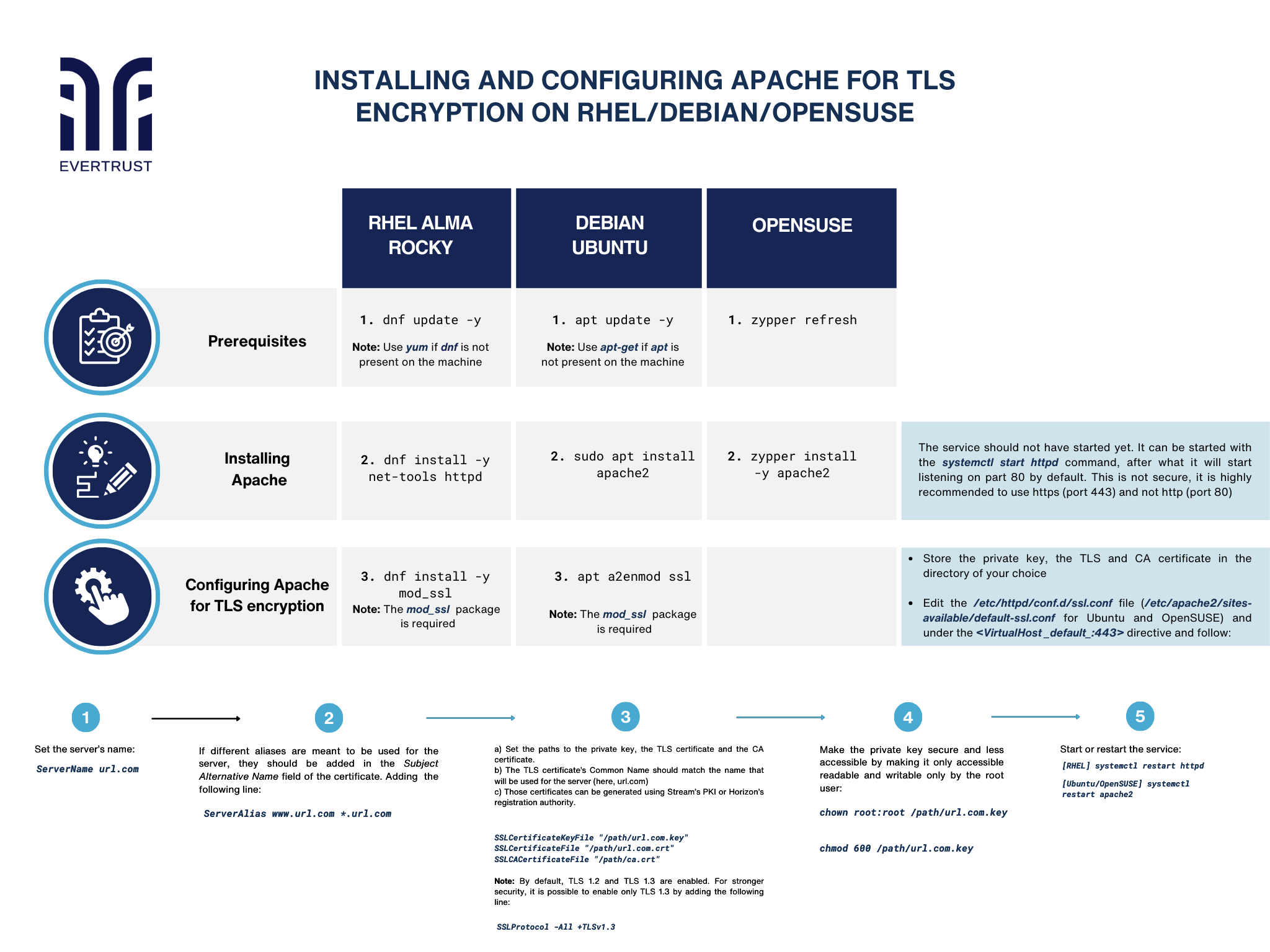
But before diving into the configuration process, it is essential to ensure that the following prerequisites are met:
Prerequisites:
Updating already present packages. Special privileges will be required for certain operations throughout the procedure:
RHEL
dnf update -y
Note: Use yum if dnf is not present on the machine
Ubuntu
apt update –y
Note: Use apt-get if apt is not present on the machine
OpenSUSE
zypper refresh
Installing Apache process:
Write the different commands for each system:
RHEL
dnf install -y net-tools httpd
Ubuntu
sudo apt install apache2
OpenSUSE
zypper install -y apache2
Note: The service should not have started yet. It can be started with the systemctl start httpd command, after what it will start listening on part 80 by default. This is not secure; it is highly recommended to use https (port 443) and not http (port 80).
Want to implement these PKI practices?
Get expert guidance on implementing secure PKI solutions for your organization.
Get Expert HelpConfiguring Apache for TLS encryption:
The mod_ssl package is required. Then, insert the following commands for each system:
RHE
dnf install -y mod_ssl
Ubuntu
apt a2enmod ssl
After that, store the private key, the TLS and the CA certificate in the directory of your choice.
Once this is done, edit the /etc/httpd/conf.d/ssl.conf file (/etc/apache2/sites-available/default-ssl.conf for Ubuntu and OpenSUSE) and under the <VirtualHost _default_:443> directive and follow next instructions:
Set the server's name:
ServerName url.com
If different aliases are meant to be used for the server, they should be added in the Subject Alternative Name field of the certificate. To add those alternative names to the configuration, add the following line:
ServerAlias www.url.com *.url.com
Set the paths to the private key, the TLS certificate and the CA certificate. The TLS certificate’s Common Name should match the name that will be used for the server (here, url.com). Those certificates can be generated using Stream’s PKI or Horizon’s registration authority.
type: embedded-entry-inline id: 6iVFmA9kTYCvDuSTGNOAH2
Note: By default, TLS 1.2 and TLS 1.3 are enabled. For stronger security, it is possible to enable only TLS 1.3 by adding the following line:
SSLProtocol -All +TLSv1.3
Make the private key secure and less accessible by making it only accessible to the root user. To do so, make the root user the owner of the key file and make the file readable and writable only by the root user.
chown root:root /path/url.com.key
chmod 600 /path/url.com.key
Start or restart the service:
[RHEL] systemctl restart httpd
[Ubuntu/OpenSUSE] systemctl restart apache2
Conclusion:
Installing a web server on a Linux distribution is a crucial step in setting up a web hosting environment whether you choose depends on your specific requirements and preferences, they offer robust features and performance optimizations for serving web content efficiently. By following the appropriate installation instructions for your chosen Linux distribution, you can quickly set up a reliable web server and start hosting your websites or applications for the world to access.
